In Google Docs · Word coming soon

NextThought AI, integrated with Google Docs

Our AI Assistant is available as a Google Docs extension — so editing, citing, illustrating, and reviewing your proposal happen right in your editor of choice. Microsoft Word coming soon.

Enhance Your Content

  • Rewrite, Clarify, Expand, or Summarize any passage
  • Insert a revision with one click, or revert to your original
  • Tuned for writing grant application documents
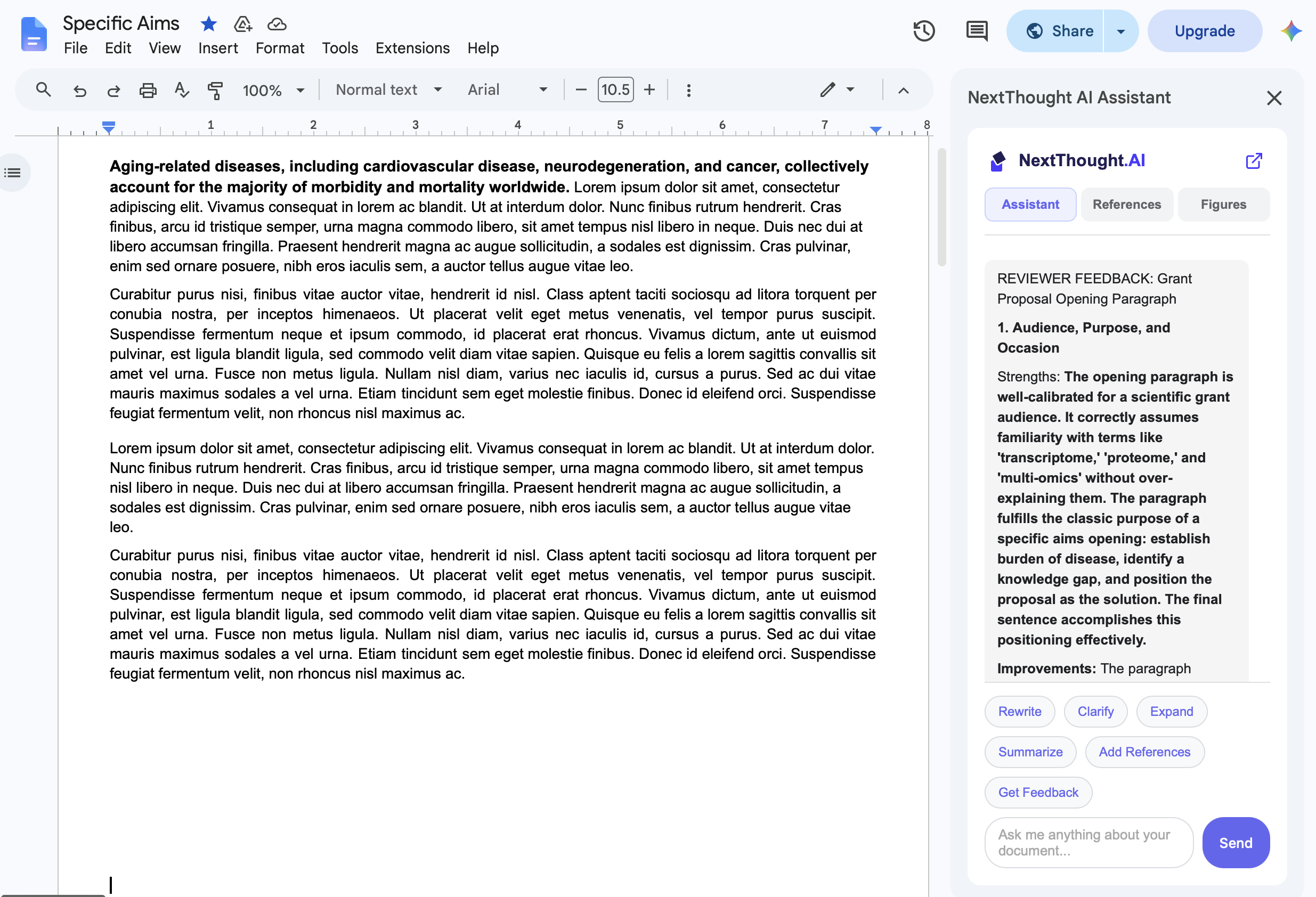
NextThought AI Assistant open beside a grant document in Google Docs, showing Rewrite, Clarify, Expand, and Summarize actions

Save Hours Finding and Inserting References

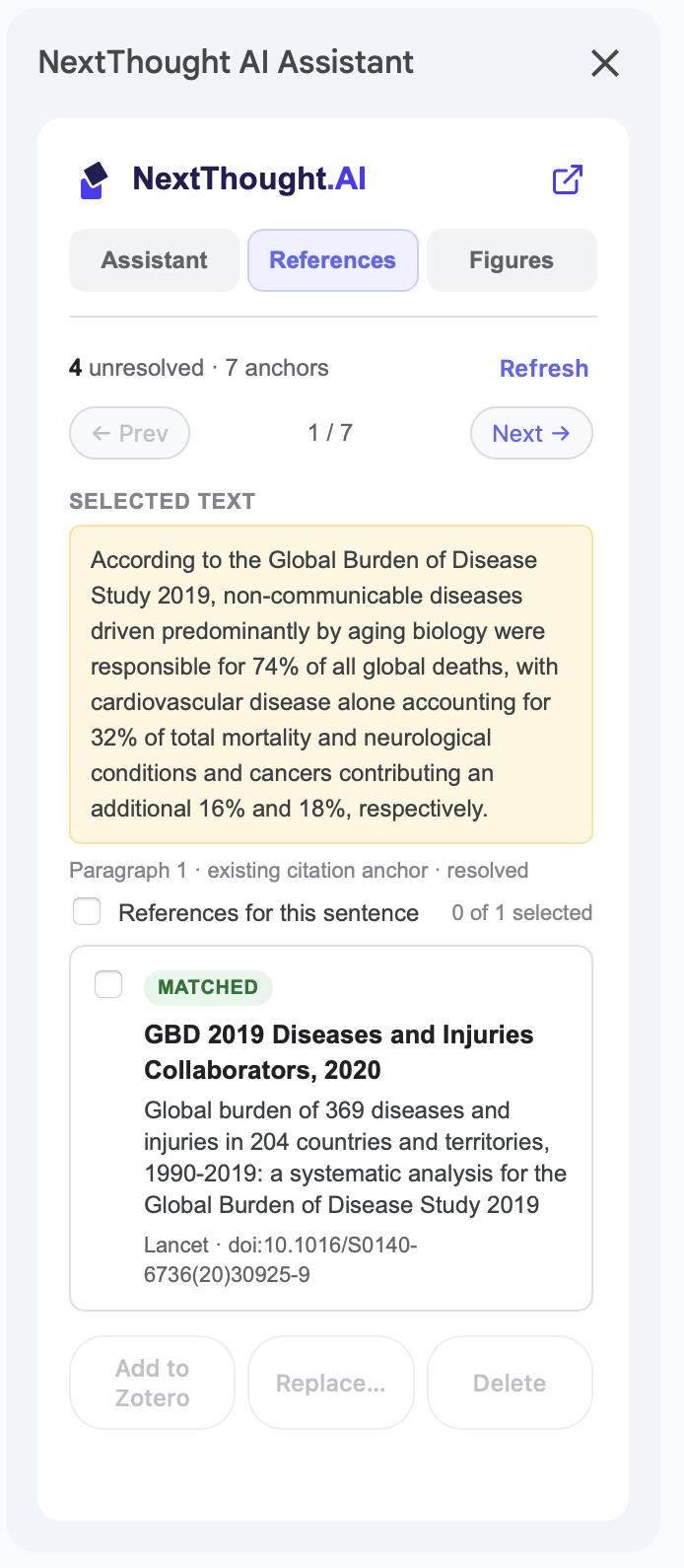
  • Matches each claim to a real paper
  • Inserts the citation and builds your bibliography
  • Draws from your Zotero library, your own published work, and CrossRef
  • Every candidate shown with its DOI — insert into your document, add to Zotero, replace, or delete
NextThought AI Assistant References tab: a selected sentence matched to a real paper with its DOI, and Add to Zotero, Replace, and Delete actions

Quickly Create, Edit and Add Figures

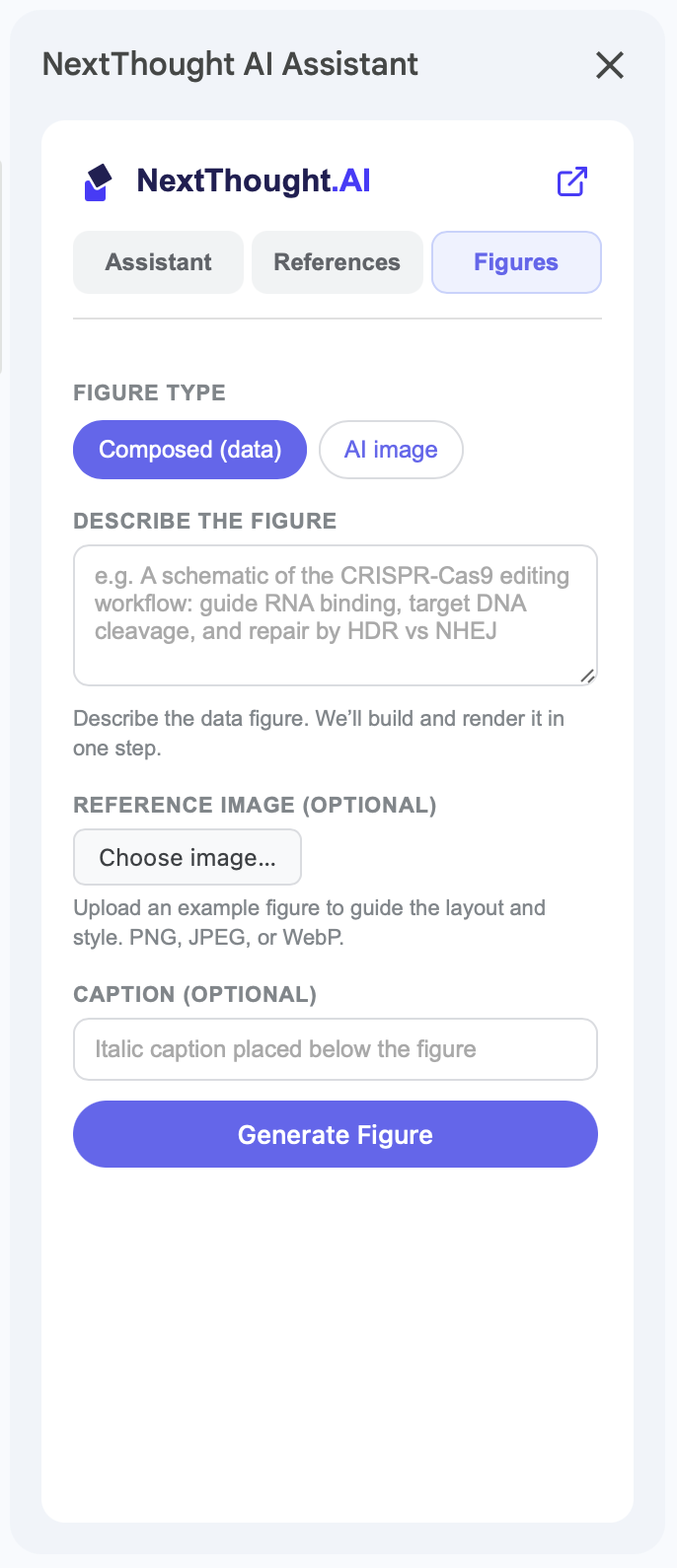
  • Describe what you need, and the Assistant renders it into your document
  • Composed data figures (bar, xy-plot, volcano, schematic…) or AI images
  • Guide the style with an optional reference image
  • Add a caption below the figure
NextThought AI Assistant Figures tab: choose a composed data figure or AI image, describe it, add an optional reference image and caption, then generate

Ask the Expert

  • Grant-writing expertise and guidance in the context of your document
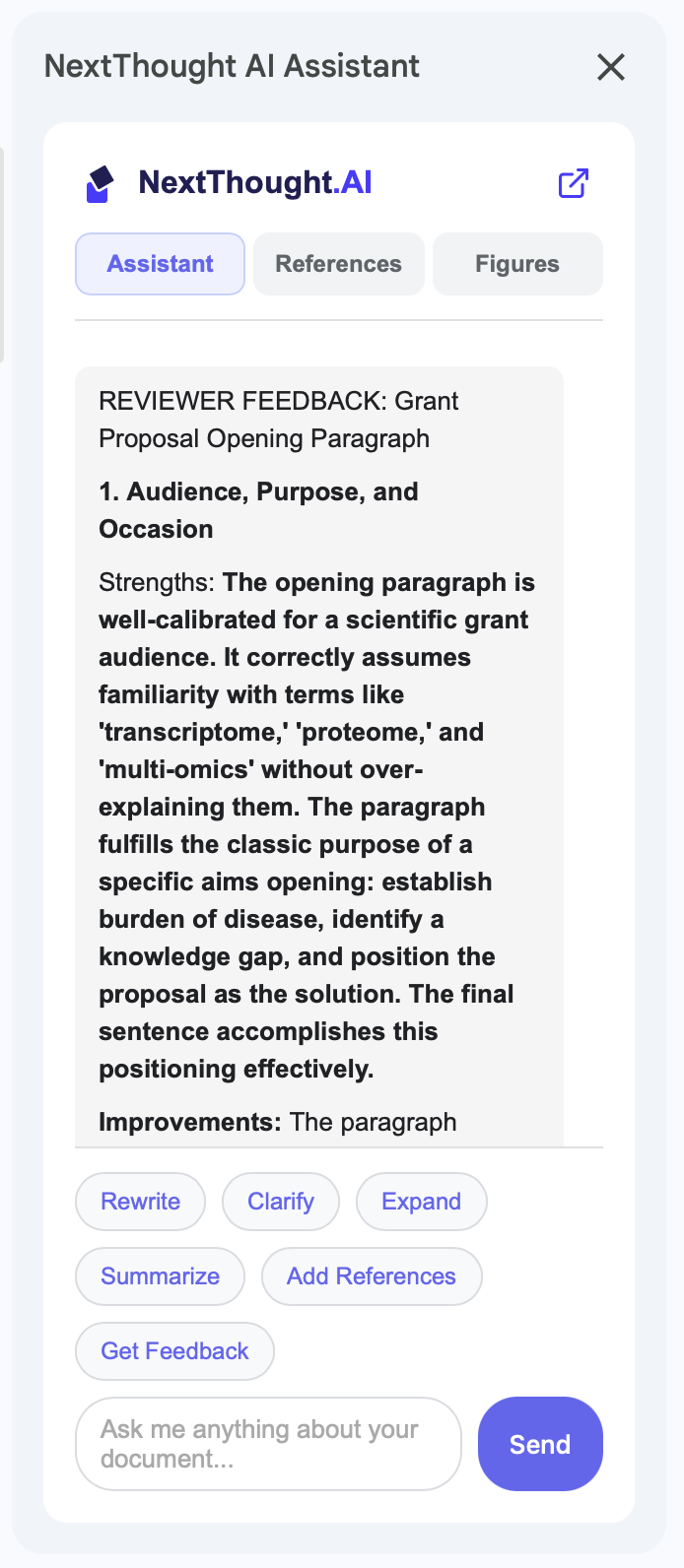
  • Get reviewer-style feedback on your draft
  • Apply feedback with a click
NextThought AI Assistant giving reviewer-style feedback on a grant proposal paragraph, with Rewrite, Clarify, Expand, Summarize, and Get Feedback actions

Get the extension

Step 1

Open your document

Open a NextThought document, or any Google Doc.

Step 2

Install the extension

Install the Next Thought AI Grant Writing Assistant from the Google Workspace Marketplace, or in Google Docs go to Extensions → Add-ons → Get add-ons and search for Next Thought AI.

Step 3

Start the Assistant

Launch it from the Extensions menu and work across three tabs: Assistant, References, Figures.

Microsoft Word support is coming soon

The same tools, in the editor many researchers already use.

Microsoft Word — coming soon

Write where you already work

Get the NextThought AI Assistant with your NextThought.AI account.